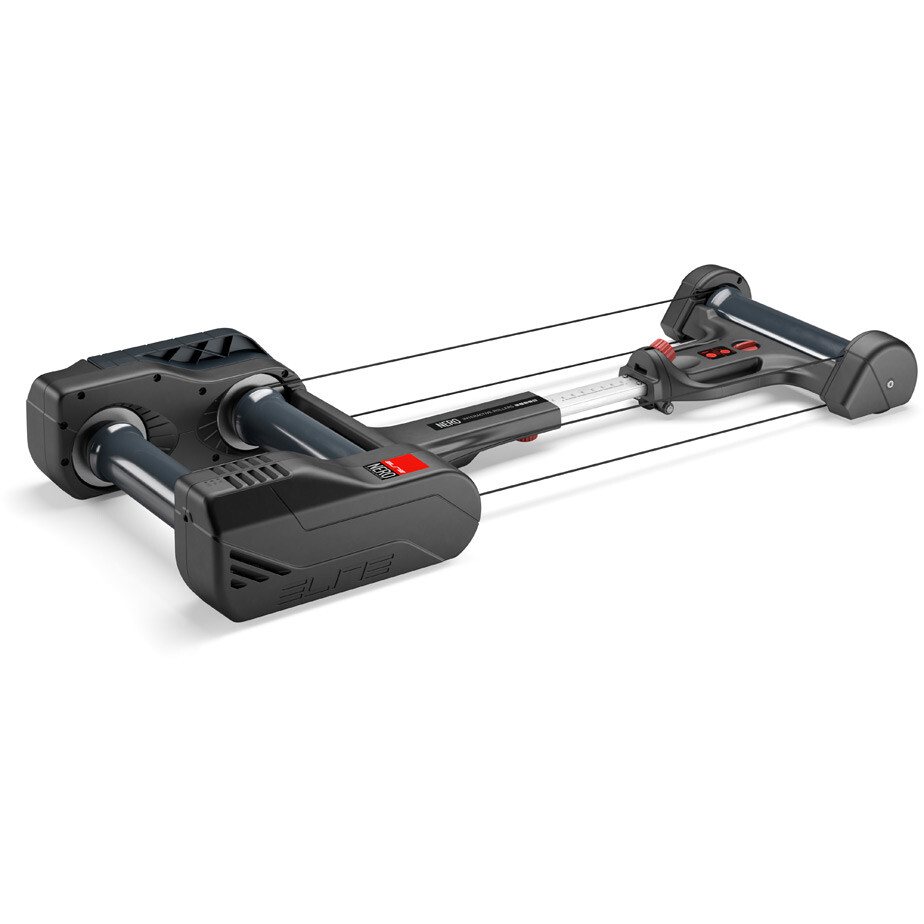
Elite Nero interactive rollers are compatible with QZ through the FTMS Bike workflow. A recent real-world setup confirmed that QZ can connect to the Nero, show the workout data and control the smart-roller experience when the Bluetooth configuration is kept focused on the FTMS trainer connection.

Table of Contents
What makes Elite Nero a smart roller?
Elite Nero combines the balance and road-like pedal stroke of parabolic rollers with electronically controlled resistance. Elite lists ANT+ FE-C and Bluetooth FTMS connectivity, gradient simulation up to 7%, two rear flywheels and compatibility with road, gravel, mountain and city bikes.[1]
- Interactive resistance for app-controlled training sessions.
- Bluetooth FTMS and ANT+ FE-C connectivity.
- Power, speed and cadence data available to compatible training software.
- Gradient simulation up to 7% for immersive workouts.
- Floating and foldable structure with parabolic rollers that help keep the bike centred.
- Two rear flywheels for a smoother, more road-like pedal stroke.
Elite Nero and QZ: the confirmed setup
The confirmed QZ setup uses the bike’s FTMS Bike path. The important configuration detail is to avoid enabling the Nero at the same time as a separate external power-sensor-as-bike path: leave the Nero under FTMS Bike and disable the additional power-sensor bike setting. This prevents QZ from opening competing data/control paths during startup.
| QZ setting or feature | Recommended use with Elite Nero |
|---|---|
| FTMS Bike | Enable this setting for the Nero connection. |
| Power sensor as bike | Leave the separate power-sensor-as-bike path disabled when using Nero through FTMS. |
| Live metrics | Use QZ to display the available power, speed, cadence and resistance data. |
| Resistance control | Allow compatible training commands to reach the Nero through the FTMS interactive-trainer connection. |
| Virtual bike | Expose QZ as a virtual Bluetooth bike when the training app runs on a second device. |
Which training apps can use the Nero?
Elite lists Nero as compatible with major cycling platforms including Zwift, MyWhoosh, ROUVY, Kinomap and BKOOL. Elite’s documentation also explains that Bluetooth FTMS and ANT+ FE-C are the interactive protocols used to transmit data and receive real-time trainer commands.[1] [2] [3]
With QZ in the middle, the practical workflow is:
- Elite Nero → QZ → Zwift for virtual riding and gradient-driven resistance.
- Elite Nero → QZ → MyWhoosh or ROUVY using the virtual-bike bridge when the app is on another device.
- Elite Nero → QZ → Kinomap or BKOOL for route and structured-training workflows supported by the app.
- Elite Nero → QZ → workout recording with QZ integrations such as Strava, Garmin Connect, Apple Health/HealthKit and Google Health/Health Connect when configured.[6]
How to connect Elite Nero to QZ
- Power-cycle the Nero and place it close to the phone, tablet or computer running QZ.
- Open QZ’s bike options and enable the FTMS Bike setting.
- Do not also enable Nero as a separate power sensor used as the bike.
- Wait for QZ to connect and confirm that the live workout tiles update.
- Enable QZ’s virtual Bluetooth bike if the training app will run on a second device.
- Open Zwift, MyWhoosh, ROUVY, Kinomap, BKOOL or another compatible app and select the QZ/Nero connection.
- For accurate speed, follow Elite’s wheel-circumference guidance for the selected connection mode.[3]
Elite Nero and QZ in one sentence
Elite Nero → QZ FTMS Bike → live power, speed, cadence and resistance → virtual bike → training app. The result is a flexible connected-training setup that keeps the distinctive freedom of rollers while adding the control and app compatibility expected from a smart trainer.
Explore the official Elite Nero page, read Elite’s trainer configuration guidance and visit QZ Fitness.
Sources
- Elite Nero official product page: smart-roller design, connectivity, flywheels and gradient simulation.
- Elite trainer configuration on Zwift: Nero as an interactive roller and Bluetooth/ANT+ trainer protocols.
- Elite trainer protocol guidance: FTMS, FE-C, power, speed, cadence and wheel-circumference configuration.
- Freewheel Elite Nero listing: product image used in this article.
- QZ supported applications: app bridging and FTMS workflows.
- QZ Fitness: connected equipment and workout integrations.